This article is about the customer app.
Review your booking and pay at the counter
What the Review & pay step shows, what confirming does, and when you pay.
Checked against the app on 2026-11-12.
The last step is called “Review & pay”. It shows the price before you confirm.
What you see
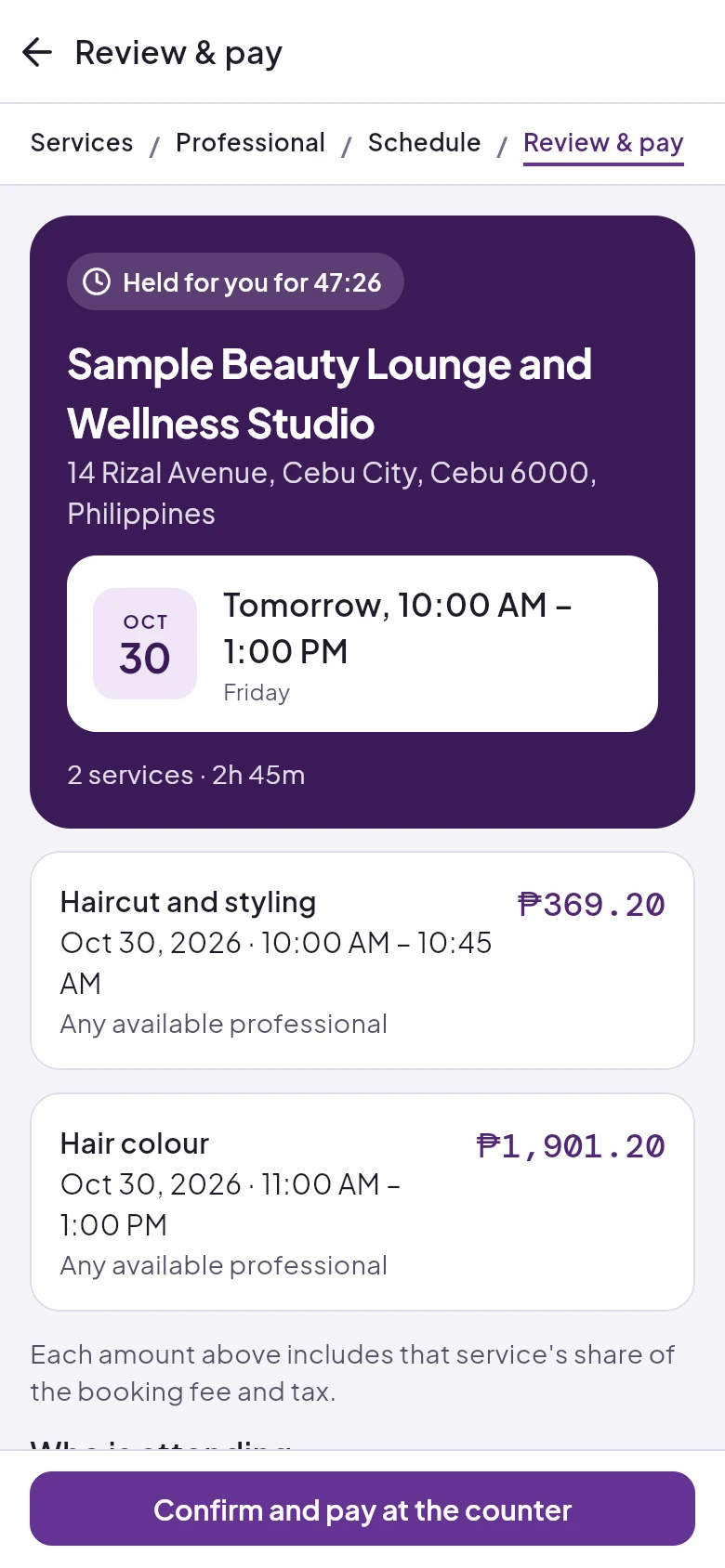
- A purple card with the business, the day, the time and how long it all takes.
- A timer that shows how long your time is held for you.
- One card for each service, with its time, the professional and an amount.
- A note under the amounts: each amount includes that service’s share of the booking fee and tax.
- A card called Pay at the counter.
The amounts are the prices the app will show on your booking. Check them before you confirm.
How you pay
The app does not take your money. It says so: nothing is charged now. You pay the business in person on the day of your booking, at the shop, store or stall.
Steps
- Check the day, the times and the amounts.
- If a service takes more than one person, the app may ask who the booking is for. See Say who is attending.
- Tap “Confirm and pay at the counter”.
- The app opens your booking. See What happens after you book.
Common problems
- The app says the time clashes with a booking you have. You cannot book two things at the same time. Choose another time, or open the booking it shows.
- The app says the hold has expired. The time is no longer held for you. Tap “Start again” and pick your times again. See What “on hold” means.