This article is about the customer app.
Filter and sort your results
Narrow a search by category, price, length and distance.
Checked against the app on 2026-11-12.
Filters make a long list shorter. Sort changes the order.
Steps
- On the home screen or on the search results page, tap “Filters”.
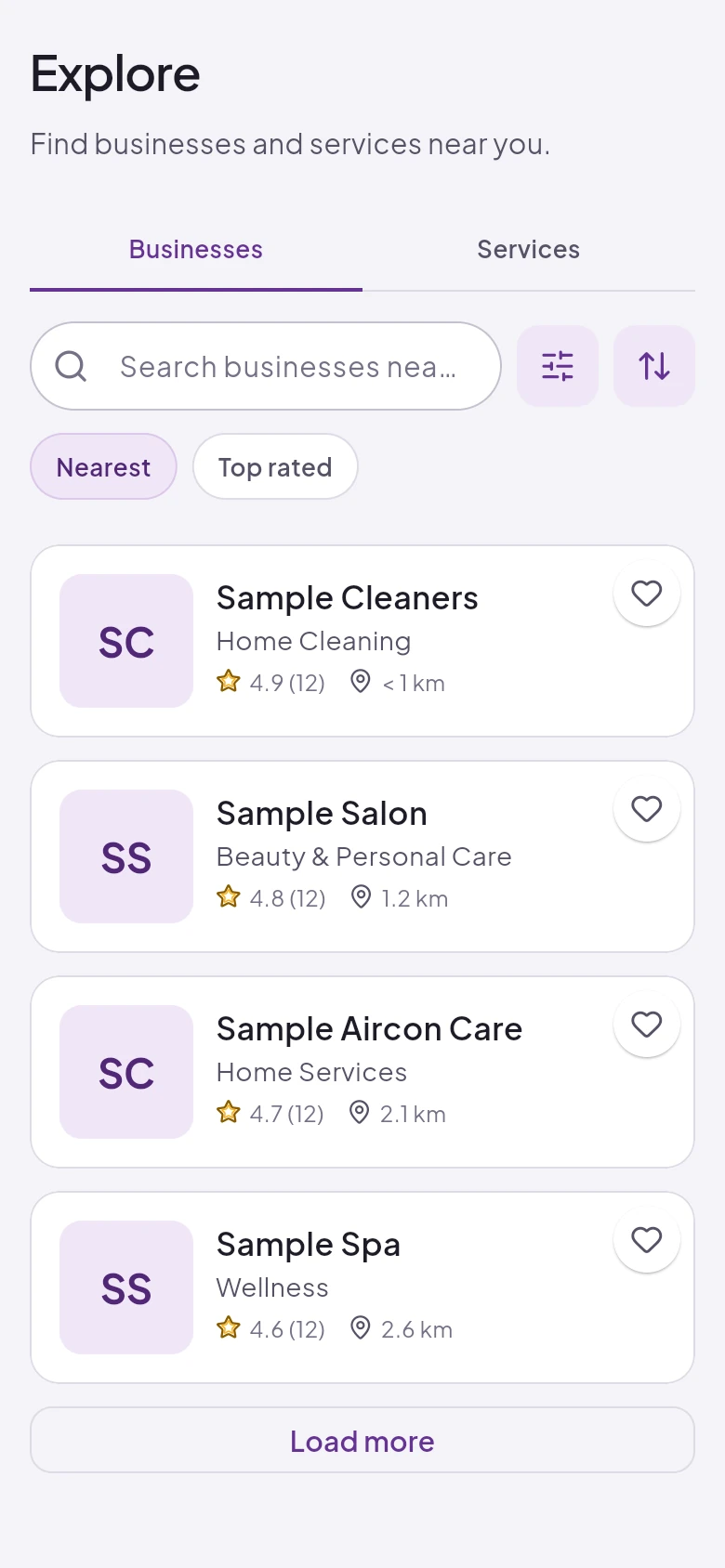
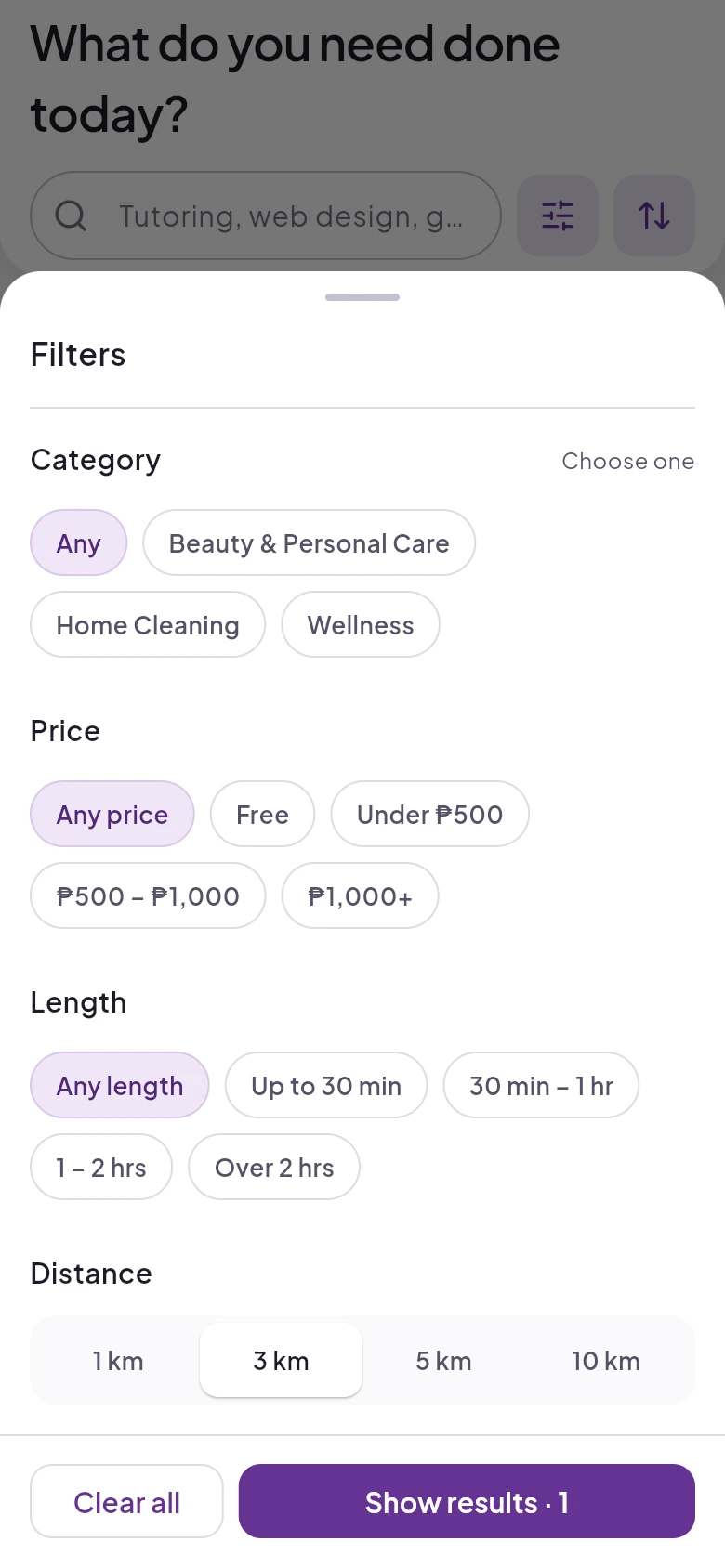
- Pick what you want. Each part is optional:
- Category. Choose one, or leave it on Any.
- Price. Choose “Under ₱500”, “₱500 – ₱1,000” or “₱1,000+”. This part is for services.
- Length. Choose “Up to 30 min”, “30 min – 1 hr”, “1 – 2 hrs” or “Over 2 hrs”. This part is for services too.
- Distance. Choose “1 km”, “3 km”, “5 km” or “10 km”. The app starts at 5 km.
- Tap “Show results”. The button also shows how many filters you picked.
Start again
Tap “Clear all” to put every filter back to its start.
Sort
Tap “Sort” to change the order. You can sort by nearest first, by top rated, or by name from A to Z. When you look at services, you can also sort by price, low to high or high to low.