This article is about the customer app.
Find a business and a service
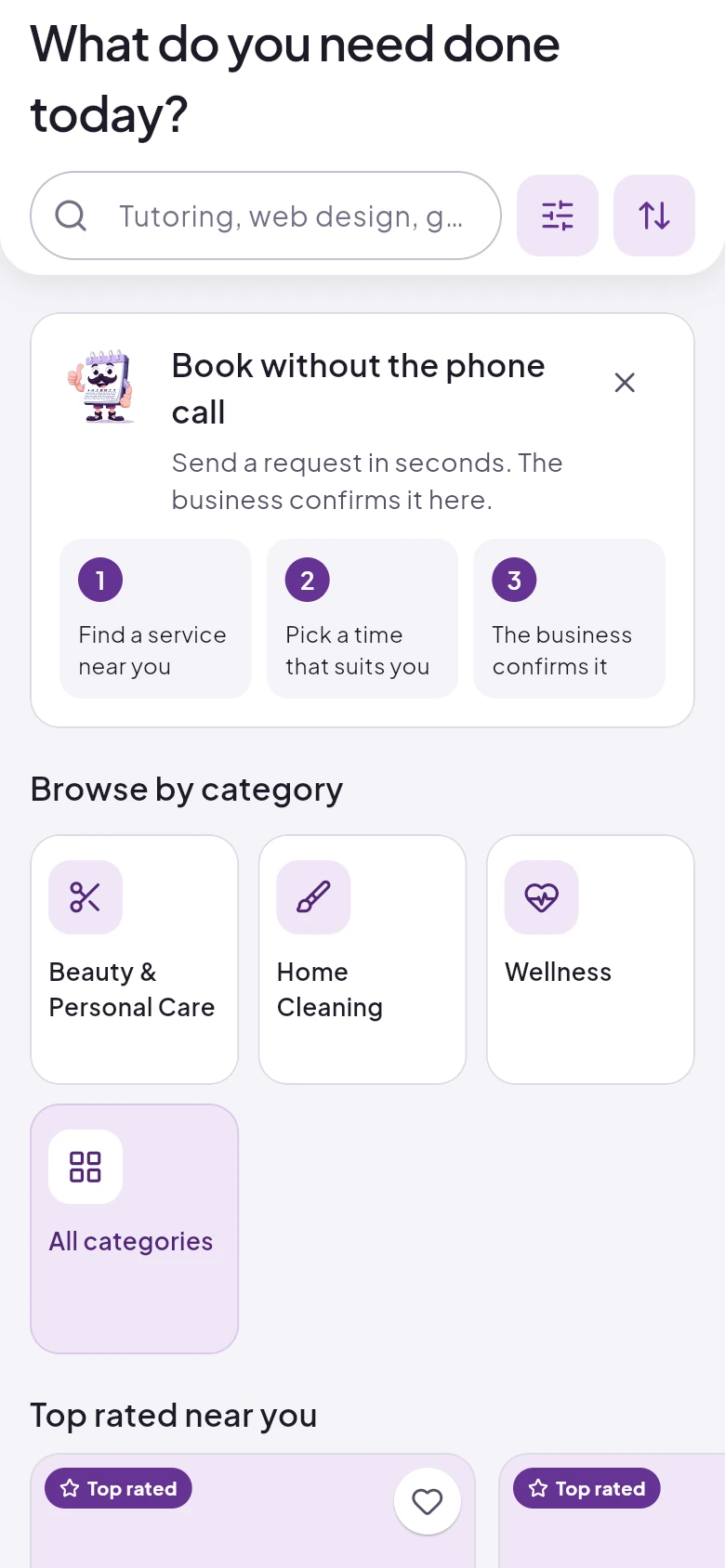
Look around the home screen or search for a service near you.
Checked against the app on 2026-11-12.
You can find a business, or a service, from the home screen or from search. Both use your location, so the app can show what is near you.
Look around
- Open the app. The home screen shows three short ideas: “Find a service near you”, “Pick a time that suits you” and “The business confirms it”.
- Scroll to see businesses and services near you. Tap one to open it.
Search
- Type a word into the search box on the home screen, for example the service you want. Then search.
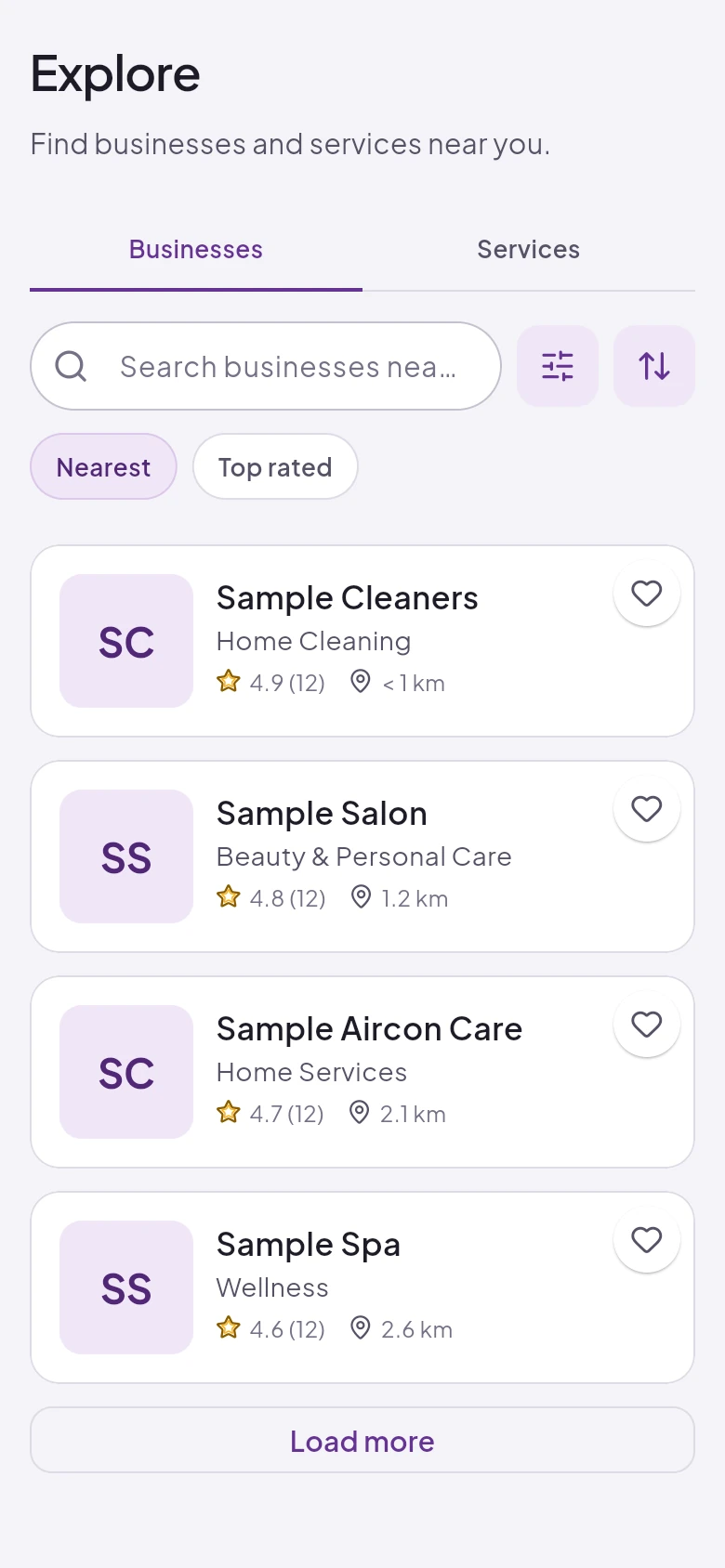
- The results page has two tabs: “Businesses” and “Services”. Pick the one you want.
- Use the quick buttons “Nearest” and “Top rated” to change the order. On the Services tab there is also “Lowest price”.
- Tap “Filters” or “Sort” to narrow the list. See Filter and sort your results.
- Tap “Load more” at the bottom to see more.
How far does it look?
The search looks up to 5 km from your location, unless you change the distance in “Filters”. The app needs a location for this. See Choose where you search from.
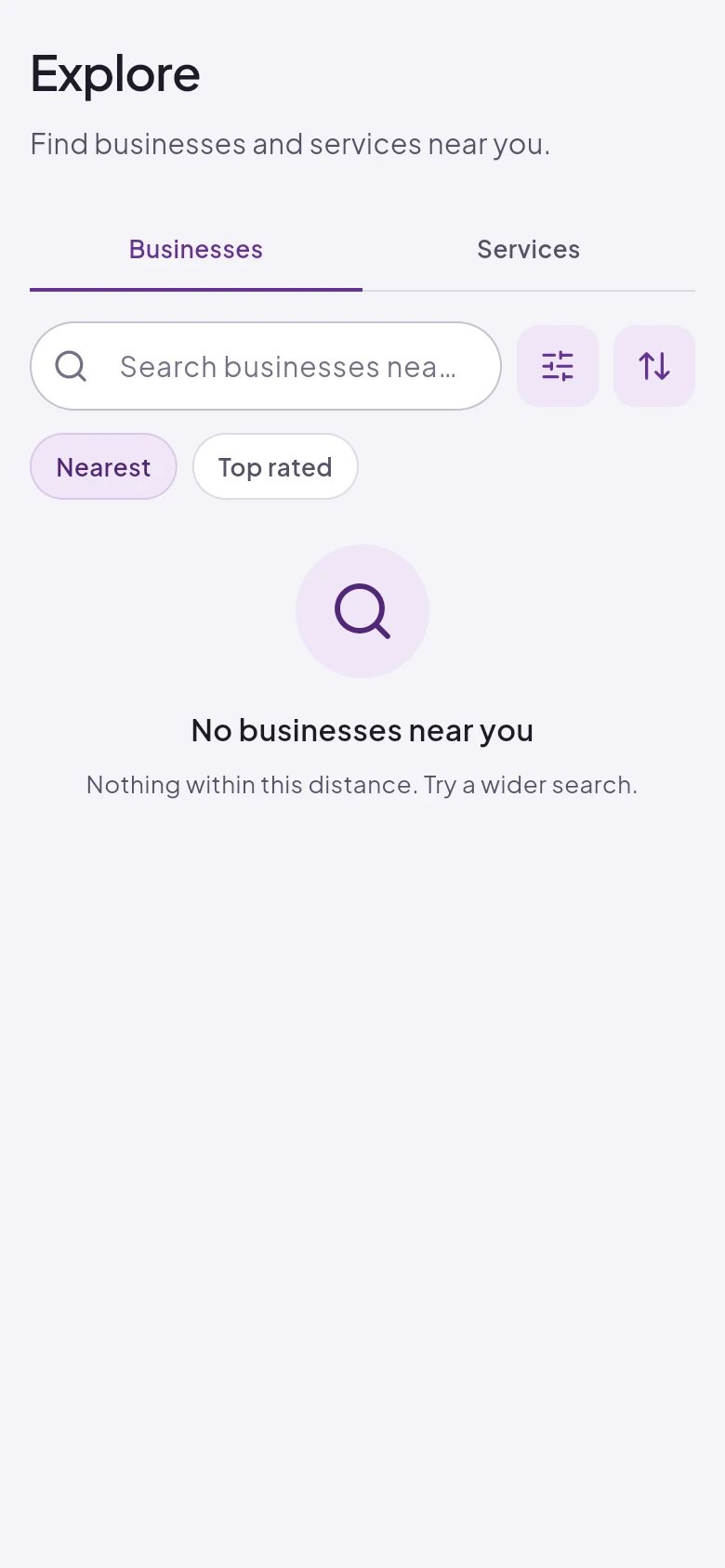
If nothing shows up
The app can say “No businesses near you”. This means nothing was found within the distance you chose. Try a wider distance, or different words.