This article is about the business app.
See your schedule
Month, week and list views of the open and booked slots for a service.
Checked against the app on 2026-11-12.
The “Schedule” shows the slots customers can book for one service, and which are already booked. You cannot change anything here. This page is for the owner only.
Steps
- Open Schedule from the More menu.
- Pick the “Service” at the top.
- Pick a view: “Month”, “Week” or “List”.
- Use “Previous” and “Next” to move, and “Today” to jump back to today.
In the Month view, each day tells you how many slots are open and how many are booked.
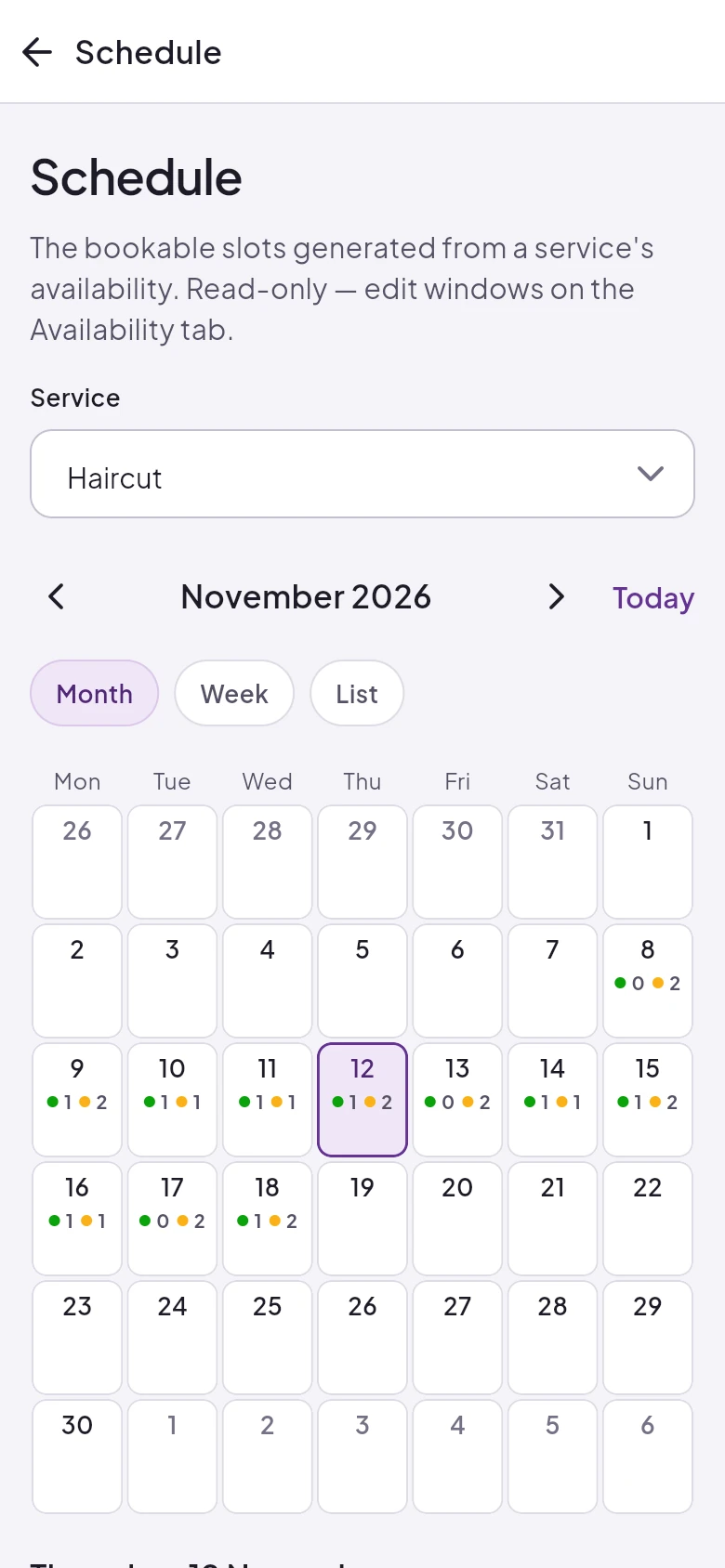
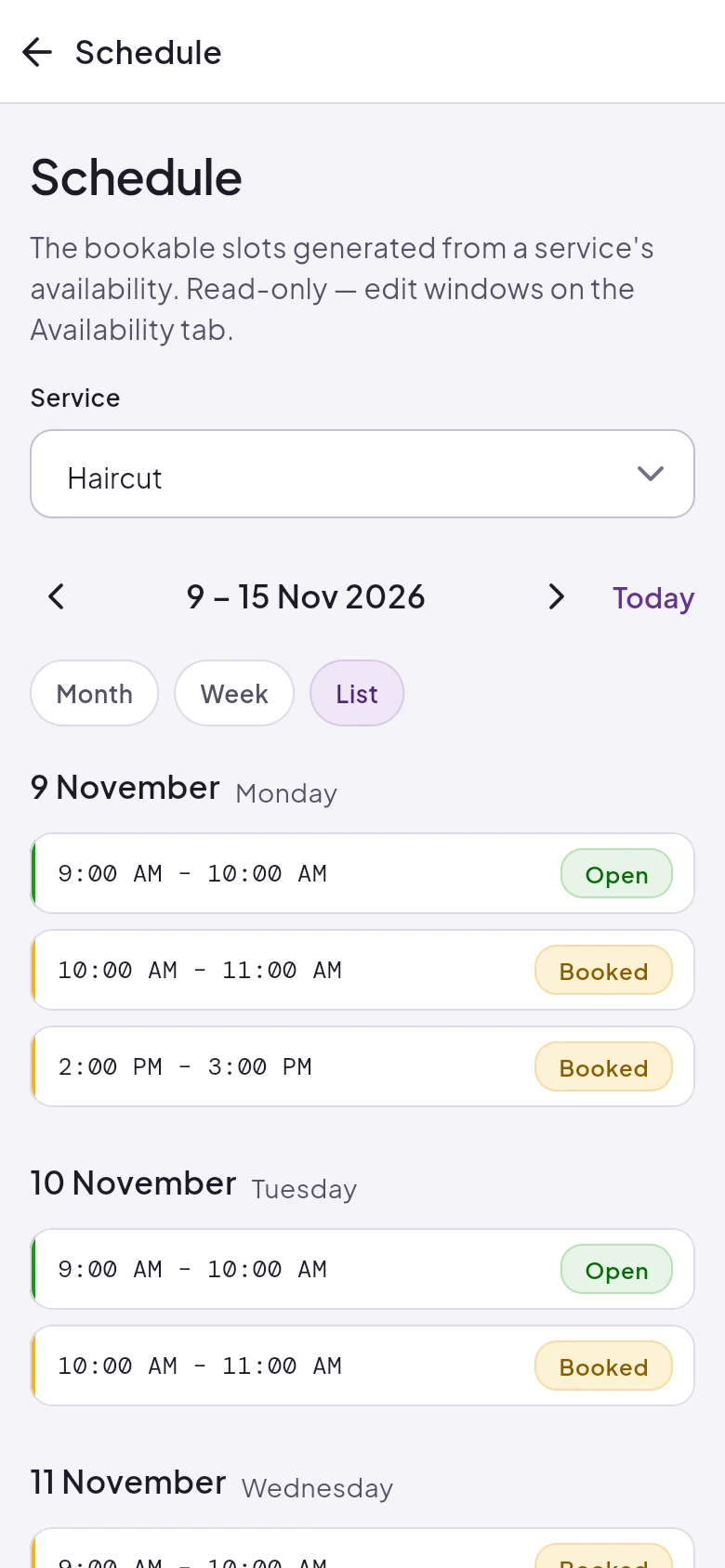
The List view shows each slot with its time and whether it is “Open” or “Booked”.
Change what is open
The schedule is built from your availability. To change it, use Add availability or Split a day into appointments.
If there is nothing to see
If the service has no slots in that range, the app says so. Add availability, or move to another month.