This article is about the business app.
Add availability
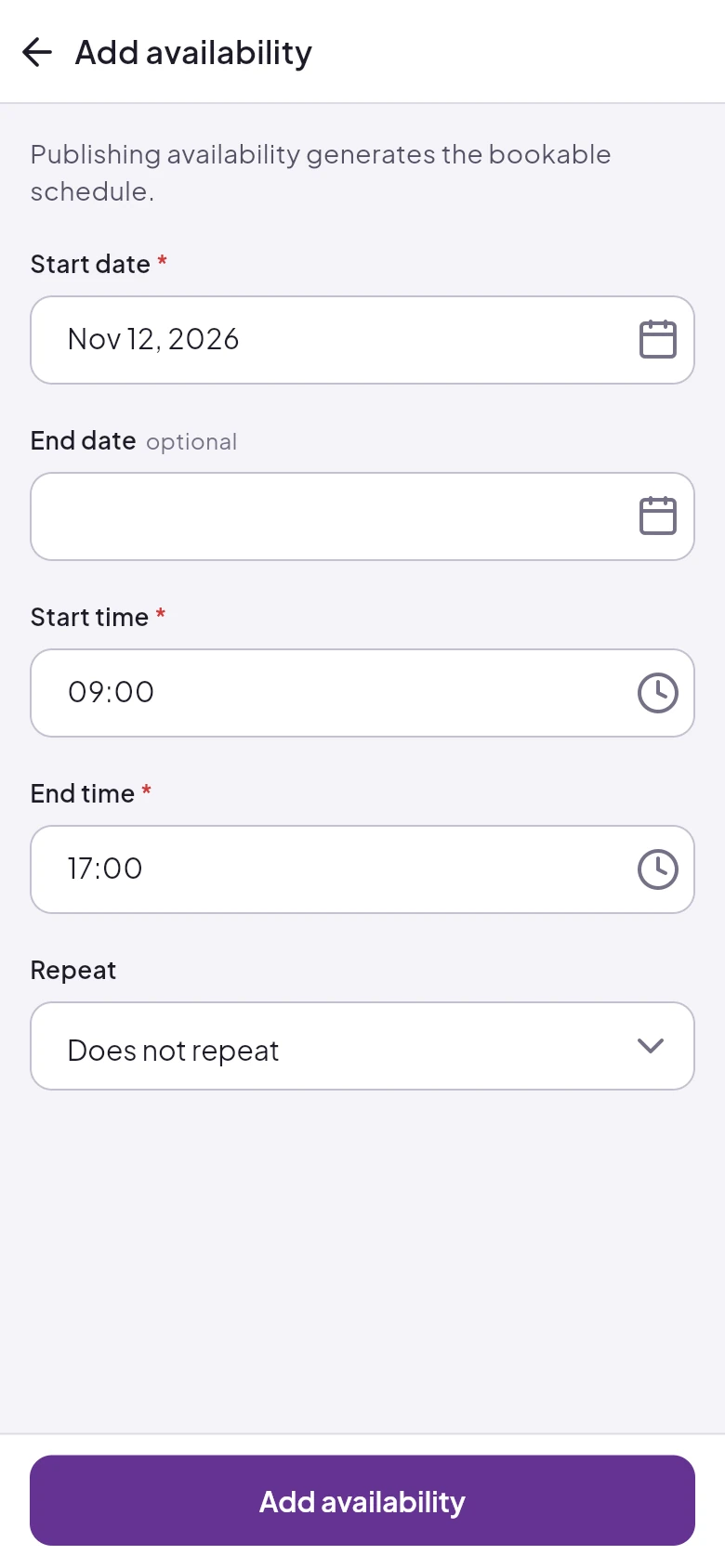
Set the days and times customers can book a service, with or without repeating.
Checked against the app on 2026-11-12.
Availability is the days and times customers can book a service. The bookable schedule is built from it. This page is for the owner only.
Before you start
You need at least one service. See Add and edit a service. Availability belongs to one service at a time, so pick the service at the top of the page first.
Steps
- Open “Availability” from the More menu. Pick the service.
- Tap “Add availability”.
- Pick the “Start date”. The “End date” is optional.
- Pick the “Start time” and the “End time”. They cannot be the same. If the end is earlier than the start, the window runs overnight and ends the next day.
- Pick “Repeat”: “Does not repeat”, “Daily” or “Weekly”. A repeating availability needs an end date.
- For Weekly, choose the days under “Repeat on”. Pick at least one day, and at least one of them must fall between your two dates.
- Save.
See and remove availability
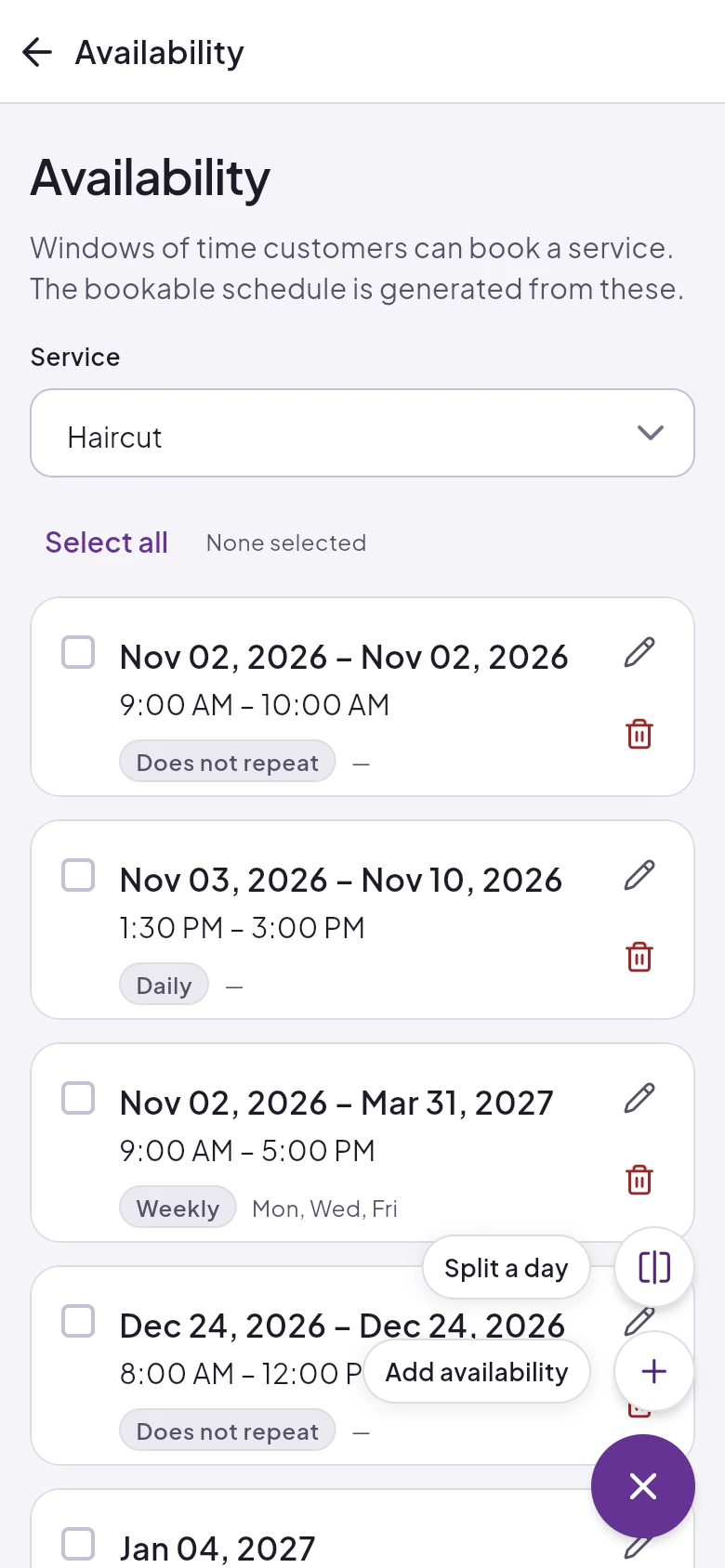
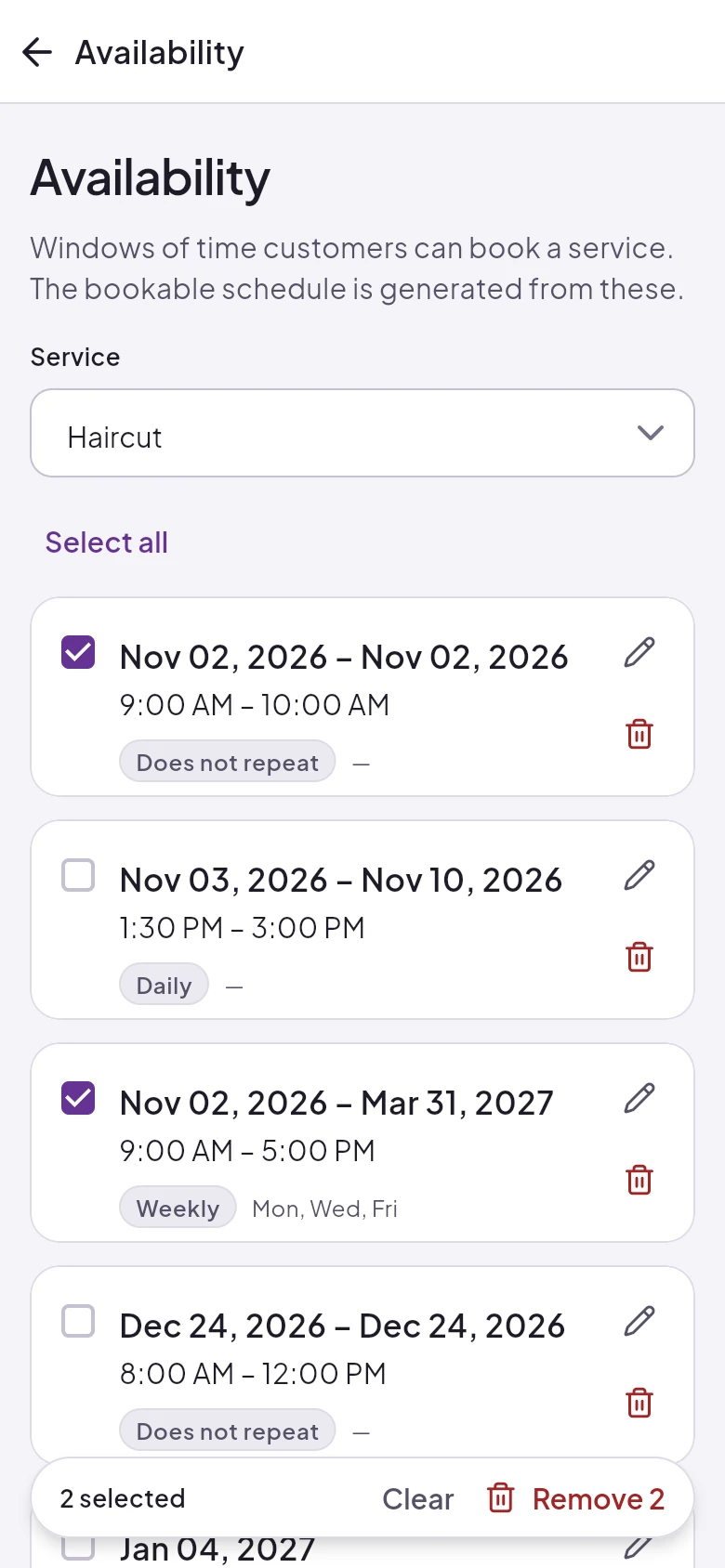
Each window on the page shows its dates, its times and how it repeats. To remove windows, tick them with “Select all” or one by one, then use “Remove availability”.
One window for each appointment
To create many short appointments in one go, see Split a day into appointments.