This article is about the business app.
Find your bookings
Search, filter and sort the Bookings list, and open a booking.
Checked against the app on 2026-11-12.
The “Bookings” page lists the bookings customers made for your services.
Steps
- Open Bookings from the bottom bar.
- Use the chips at the top to see one kind: “All”, “On hold · awaiting payment”, “Awaiting your answer” and the other statuses.
- To search, type a customer or a service in the search box.
- Tap “Filters” to pick a status, a date, a service. The dates are Any date, Today, This week, This month, or one day you pick.
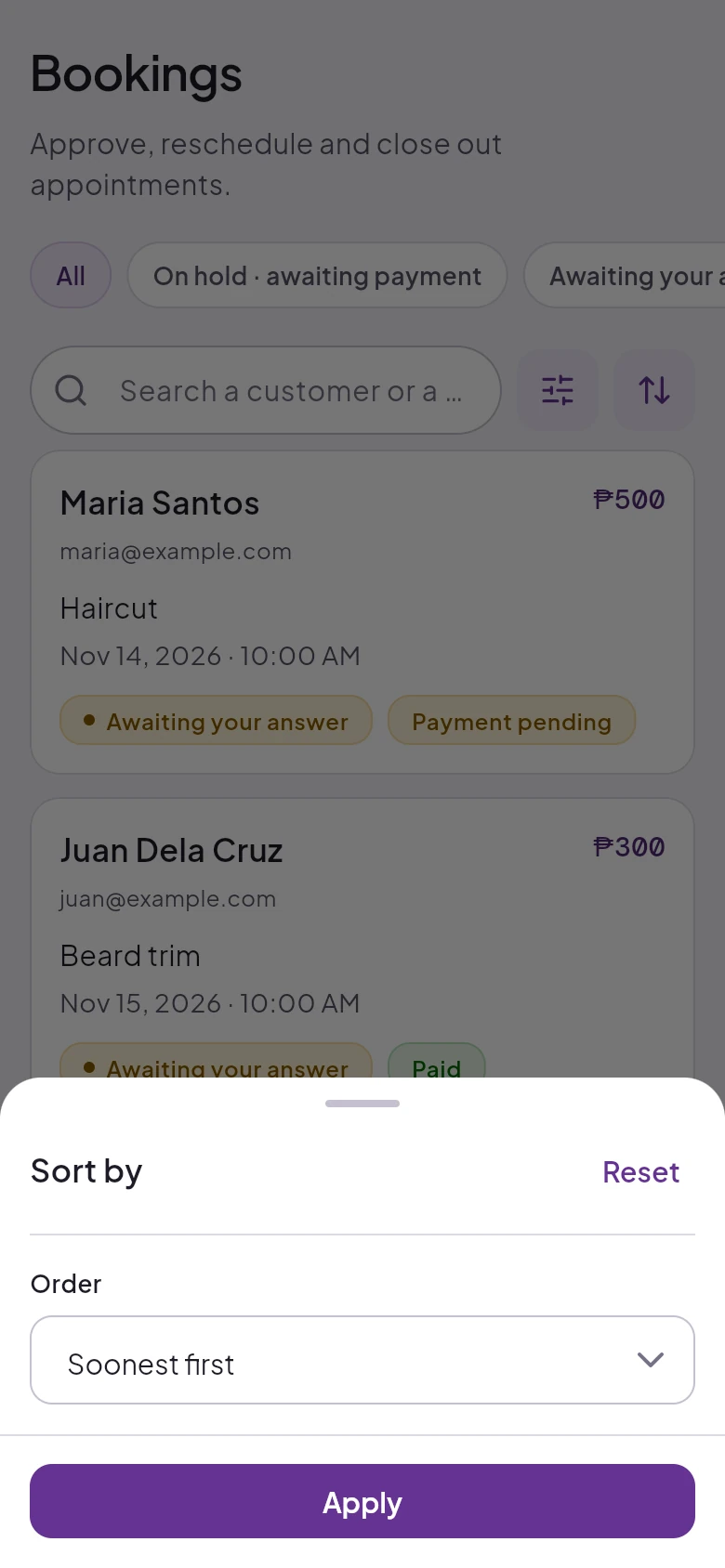
- Tap “Sort” to change the order. The default is “Soonest first”. Tap “Apply”, or “Reset” to go back.
- Tap a booking to open it. See Answer a booking.
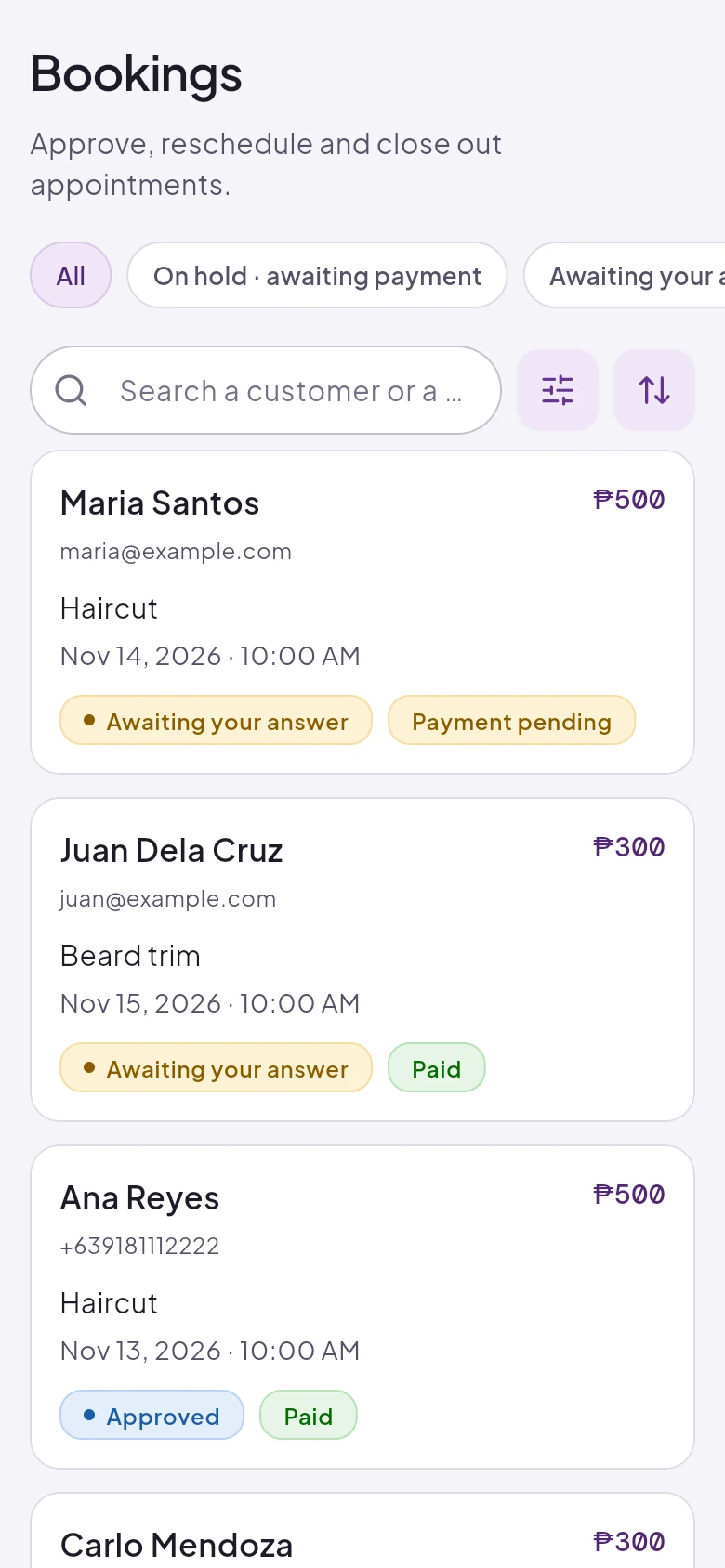
What each row shows
The customer, their email or phone, the amount, the service, the day and time, the status and the payment. A booking that is on hold is one the customer has not finished yet.
If the list is empty
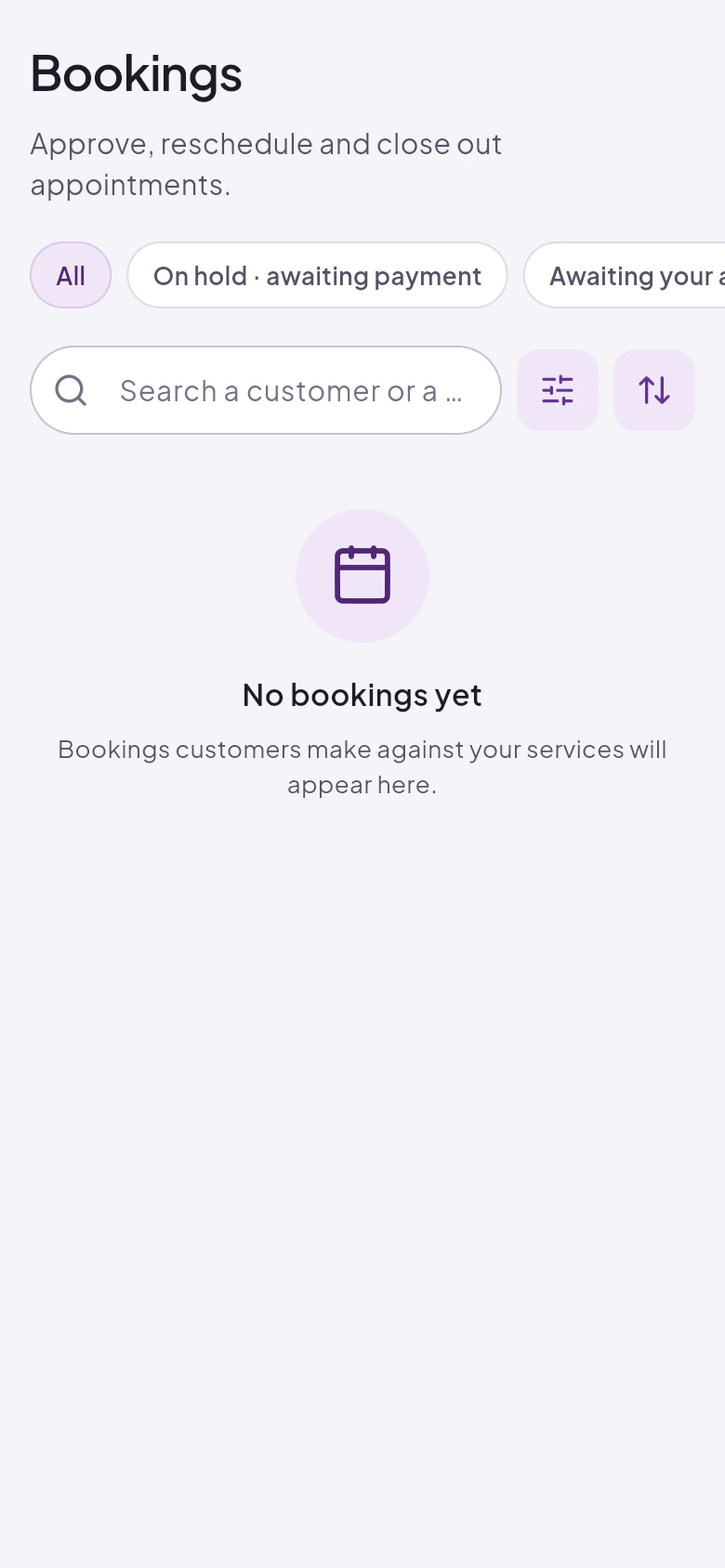
You see “No bookings yet”. Bookings customers make against your services appear here.