This article is about the customer app.
Save your places
Save Home, Work or any address, pick a default and delete places you do not use.
Checked against the app on 2026-11-12.
Saved places let you switch where you search from without typing an address each time.
Add a place
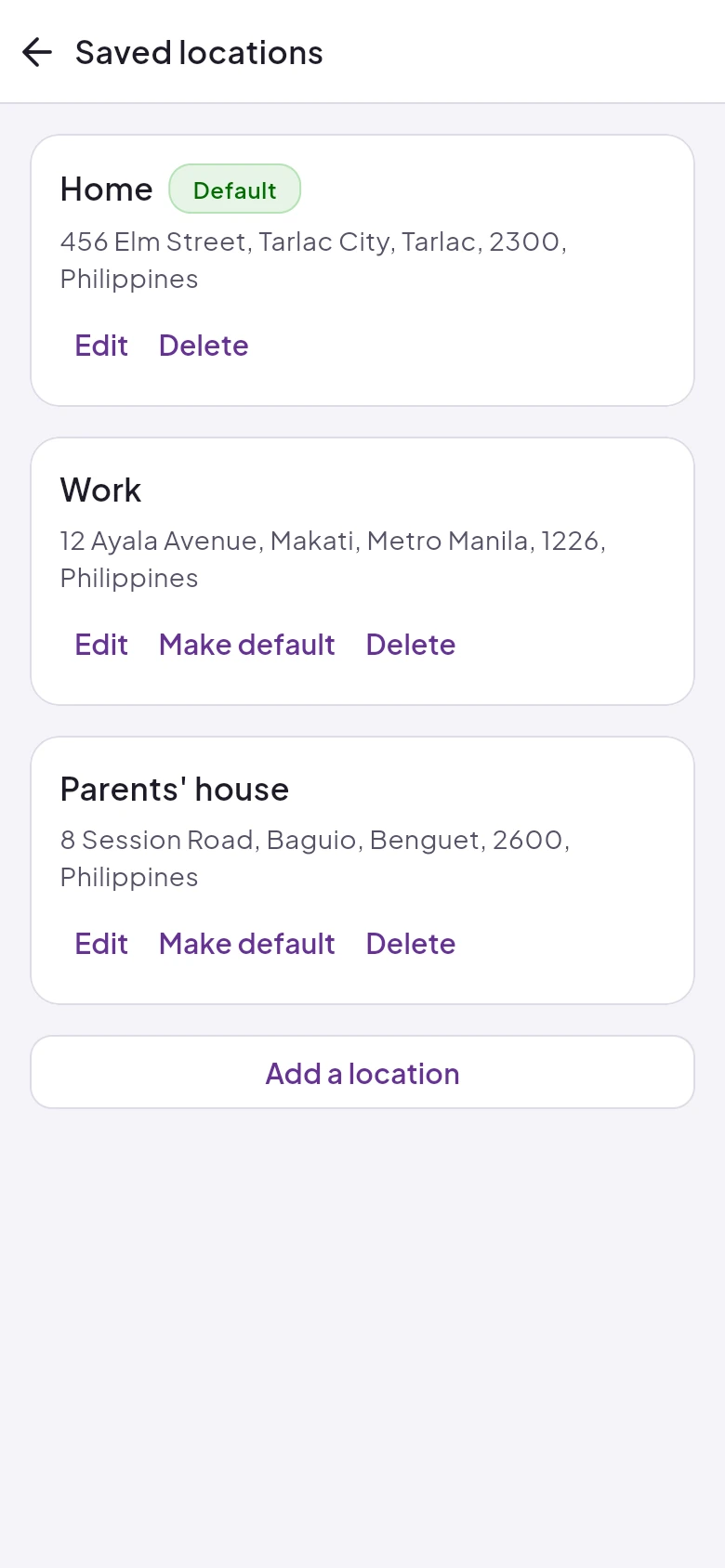
- Open the Account tab and tap “Saved locations”.
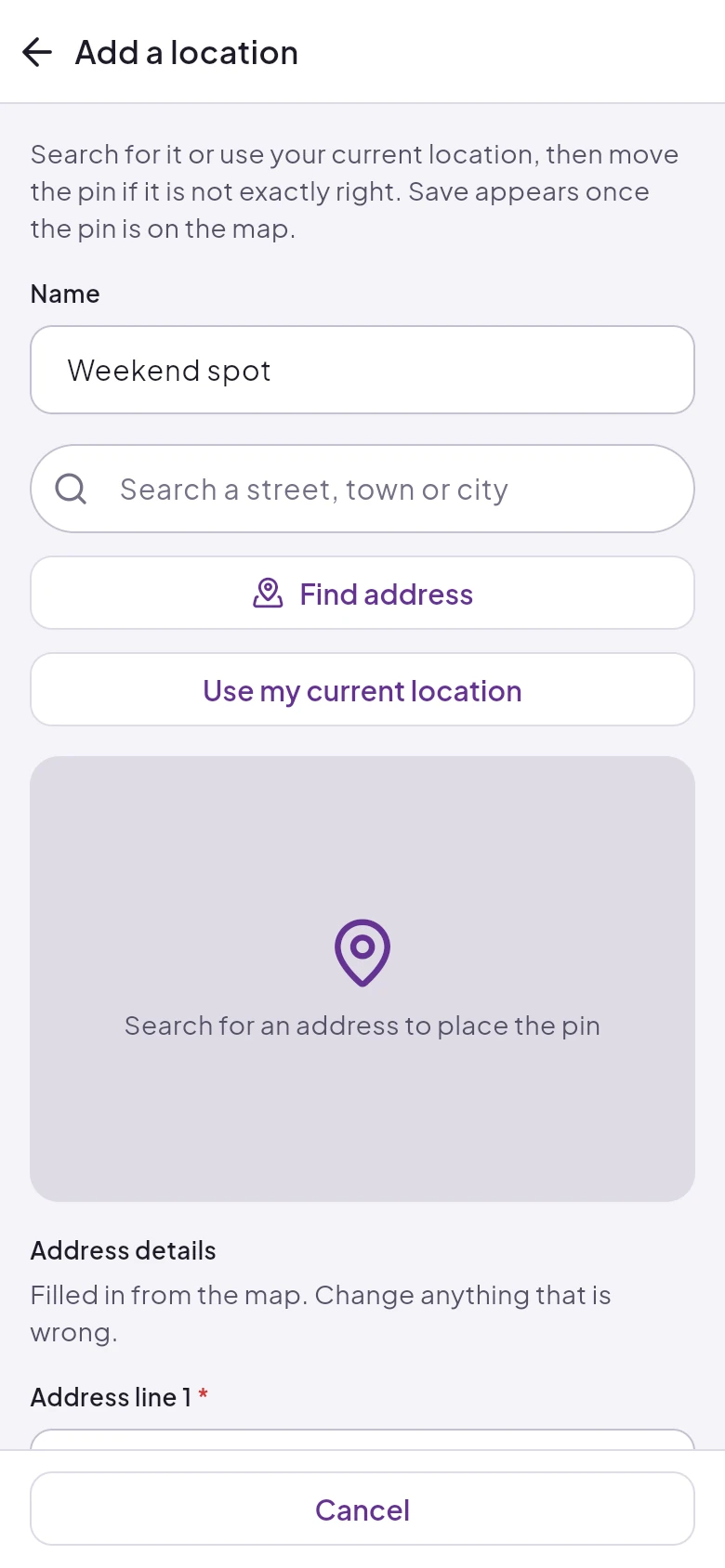
- Tap “Add a location”.
- Give it a “Name”, for example Home.
- Type an address and choose “Find address”, or tap “Use my current location”.
- Check the pin on the map. Drag it if it is not exactly right. The save button only appears once the pin is on the map.
- Check the “Address details”. The app fills them from the map. Change anything that is wrong.
- Save. Tap “Cancel” to close without saving.
Choose a default
One saved place is your default. Use “Make default” on another place to change it.
Edit or delete
Each place has “Edit” and “Delete”. If you delete your default place, one of your other places becomes the default.
Good to know
A place that was saved without a spot on the map cannot be used to search. The app lists it under a note and lets you delete it.