This article is about the business app.
Add team members and let customers book them
Invite people by email, make them bookable, and choose which services they do.
Checked against the app on 2026-11-12.
Your team are the people who work with you. You can let customers pick them when they book.
Add a person
- Open Team from the More menu and tap “Add member”.
- Type their email. It needs 5 to 50 characters.
- Tap “Send invite”. To stop, tap “Cancel”.
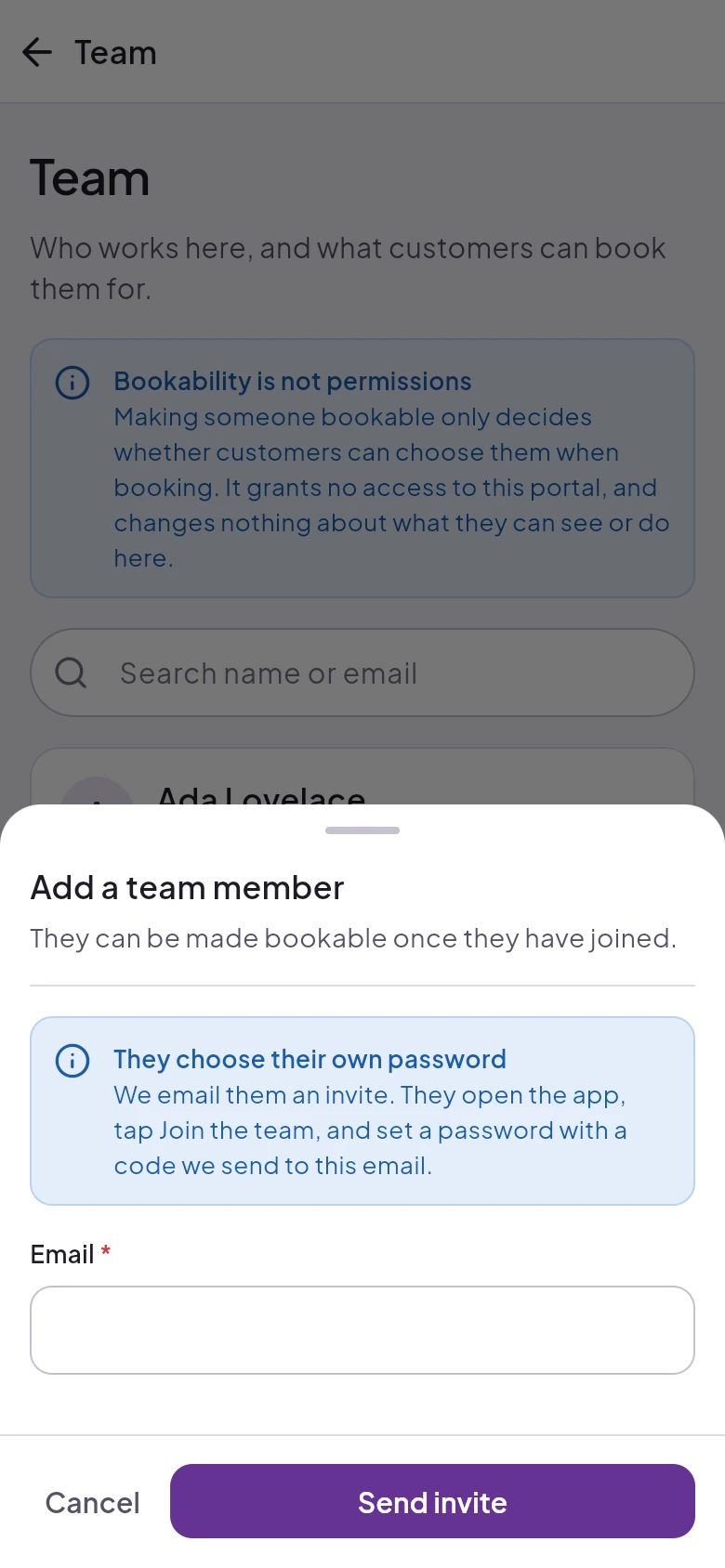
The person gets an email. They open the app, tap “Join the team” on the sign-in screen, and set their own password with a code. See Sign in, reset your password, or join a team.
If the invite email could not be sent, the app tells you. Ask the person to open the app and tap Join the team with the same email address.
Let customers book a person
- On the person’s card, turn on “Bookable by customers”. They need a first and a last name first.
- Add a “Display title”, for example Senior Stylist.
- Tap Services and pick the services this person does. Customers who book those services can choose this person.
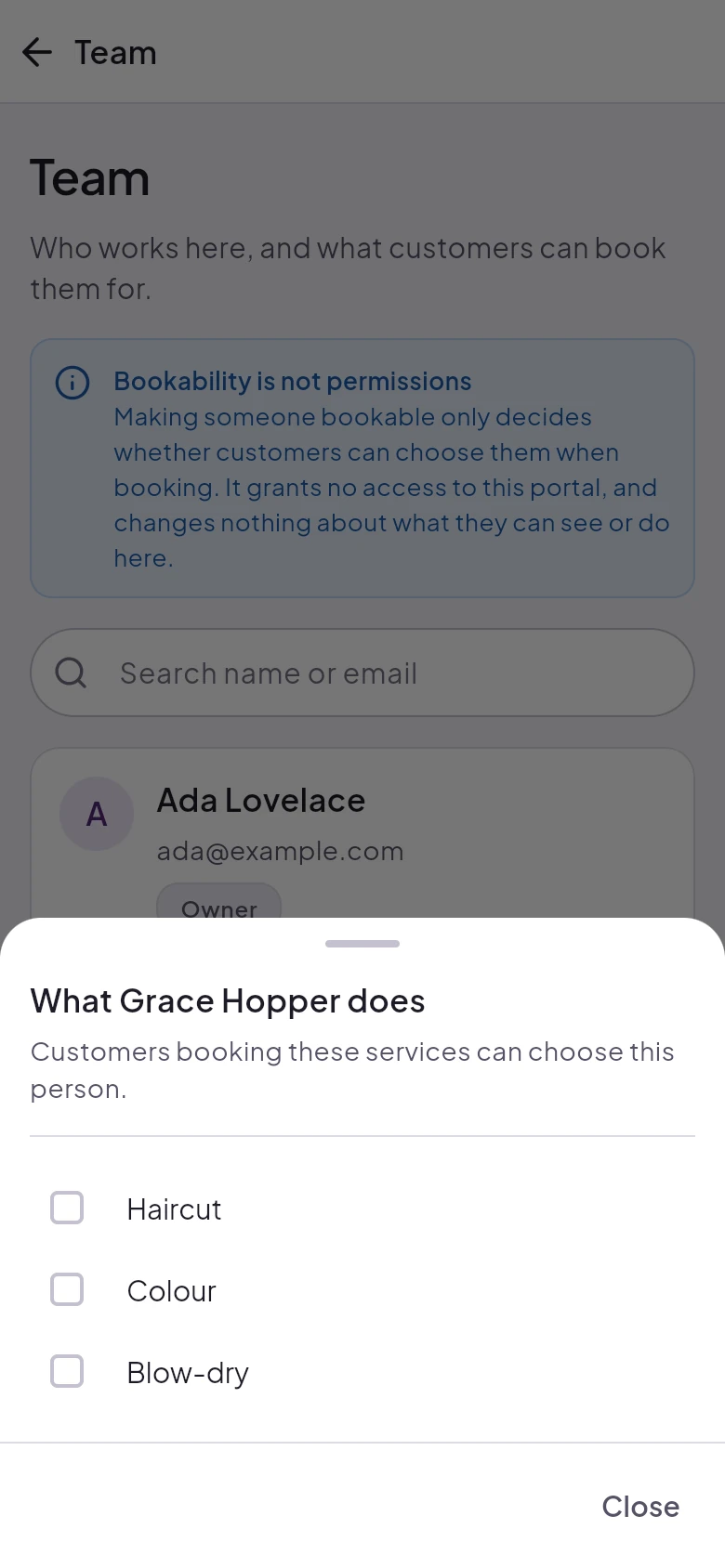
“Bookability is not permissions”. Making someone bookable only decides whether customers can choose them. It does not give them access to anything in the app.
Remove a person
Their access ends straight away. Their bookings stay on record. Services they were assigned to will no longer offer them, so check that nobody is left unbookable.