This article is about the business app.
Sign in, reset your password, or join a team
Sign in to the business app, reset a forgotten password, or join as an invited team member.
Checked against the app on 2026-11-12.
This article covers the three ways into the business app.
Sign in
- Open the business app. The screen is “Sign in”.
- Type your email and your password, then tap “Sign in”.
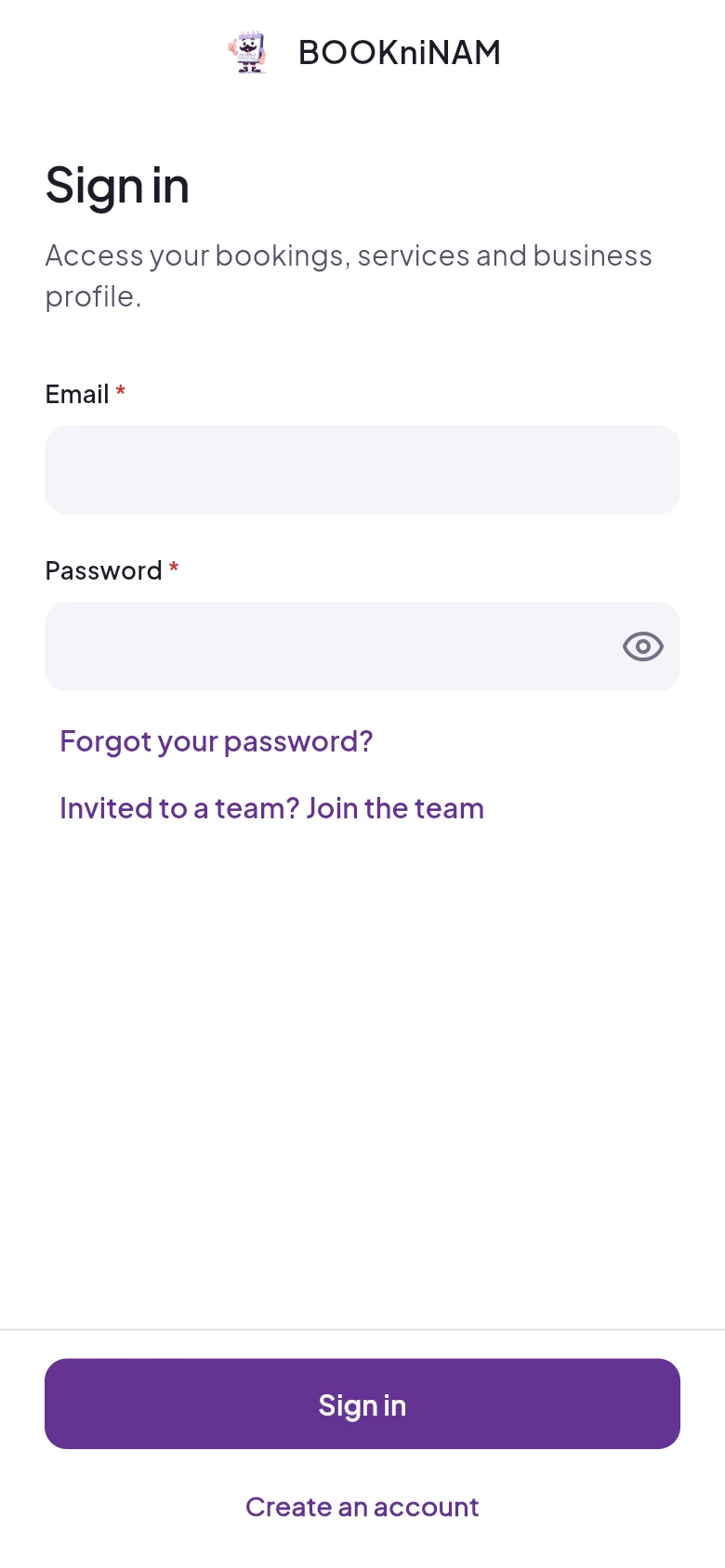
Reset a forgotten password
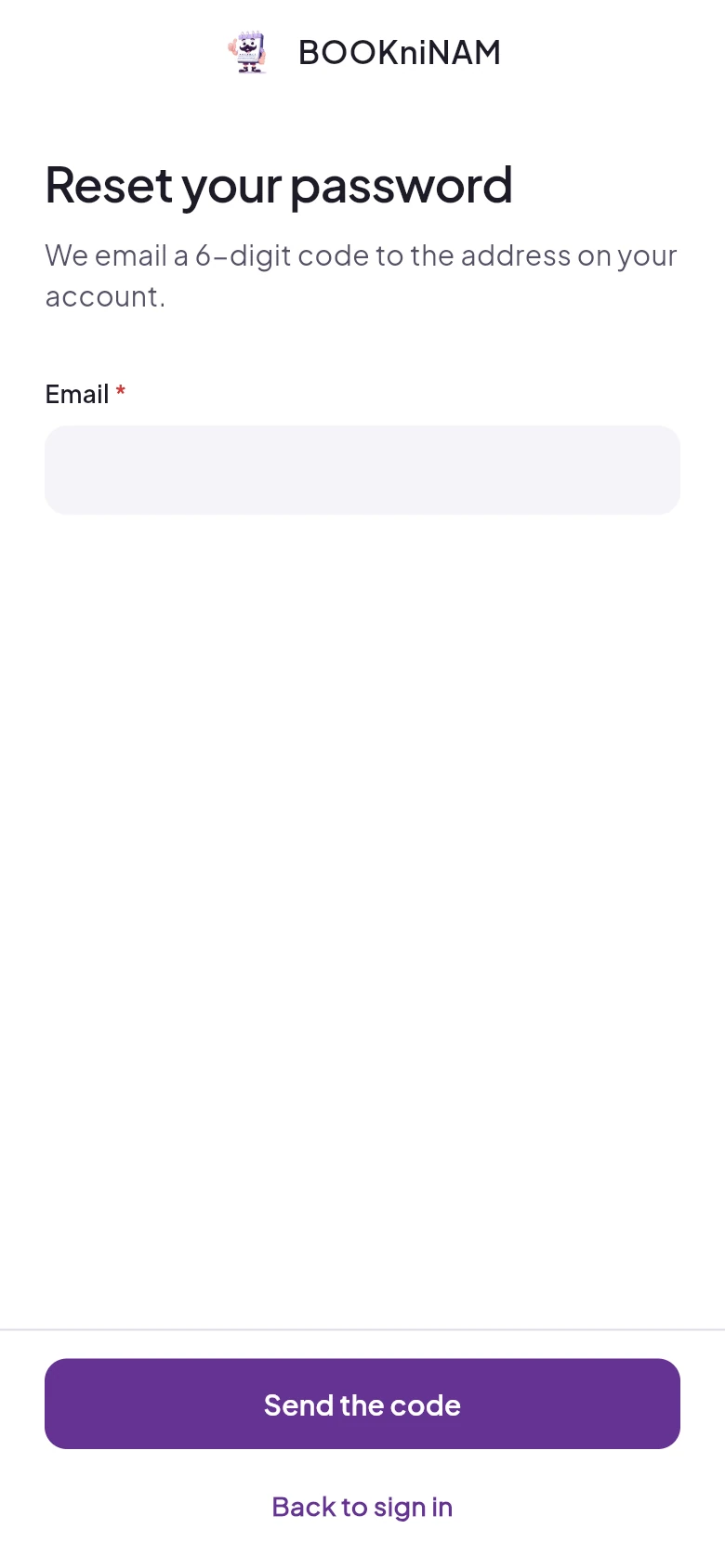
- Tap “Forgot your password?”. The next screen is “Reset your password”.
- Type the email on your account and tap “Send the code”. The app emails you a 6-digit code.
- Type the code and your new password. Use 8 to 50 characters with a lowercase letter, an uppercase letter, a number and a symbol. No spaces.
- To ask for a new code, wait 60 seconds. The app shows a countdown.
Join a team
If the owner added you as a team member, you get an email invite. You choose your own password.
- On the sign-in screen, tap “Invited to a team? Join the team”.
- Type the email address you were invited with. The app emails you a 6-digit code.
- On “Choose your password”, type the code and your new password. Agree to the Terms and the Privacy Policy.
- Tap “Join the team”, then sign in with your new password.
If the app cannot find an invitation, check the spelling of your email. Or ask the owner to add you with that exact email.