This article is about the customer app.
Create your BOOKniNAM account
Make an account in the customer app with your email and a password.
Checked against the app on 2026-11-12.
You create your account in the BOOKniNAM customer app. You need an email address you can open.
Before you start
- Have your email inbox ready. The app sends you a code to confirm it.
- Pick a password you can remember. Make it 8 to 50 characters. Use a lowercase letter, an uppercase letter, a number and a symbol. Do not use spaces.
The hint under the password box may say 6 to 50 characters. The app and the server both ask for at least 8, so use 8 or more.
Steps
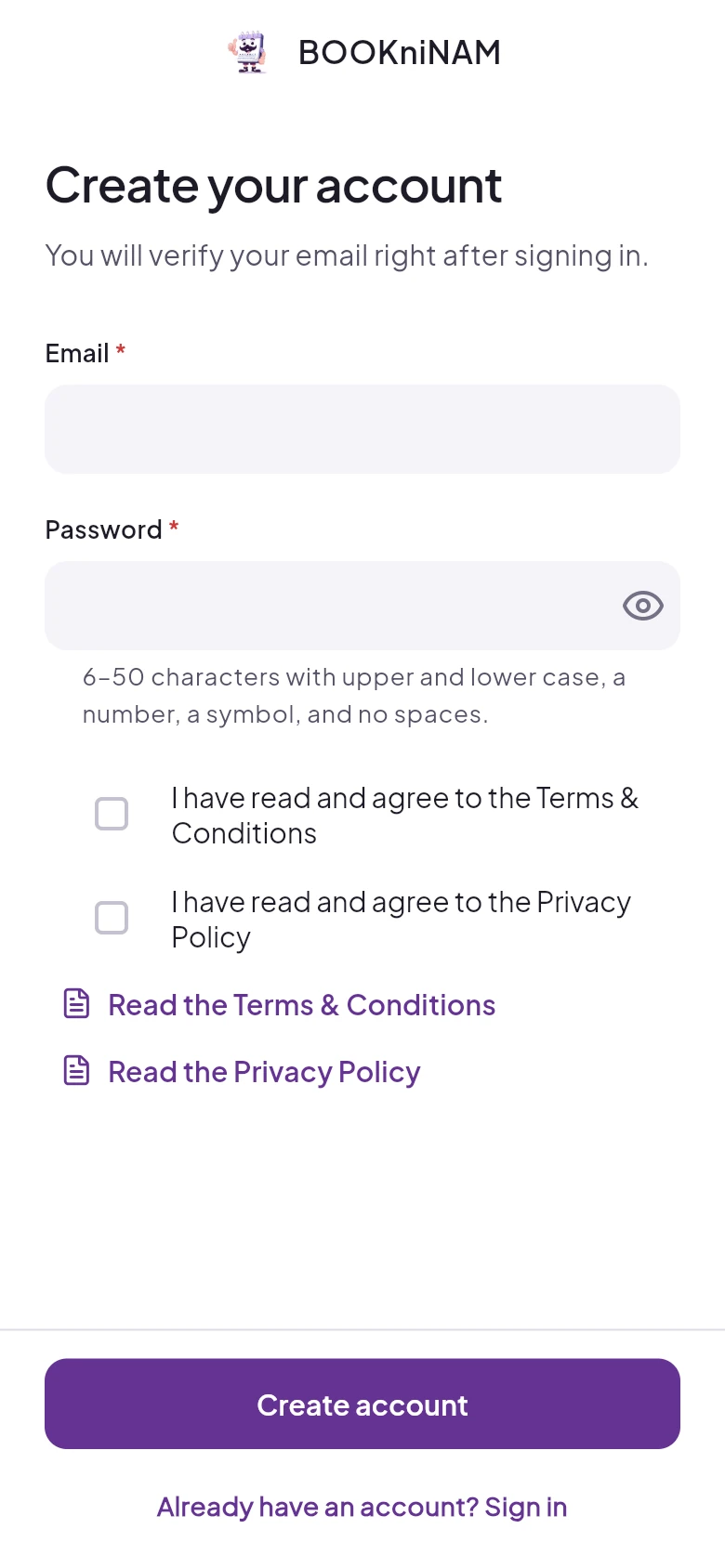
- Open the app. On the sign-in screen, choose the link to create an account. The next screen is called “Create your account”.
- Type your email.
- Type your password. Tap “Show password” if you want to see what you typed.
- Tap “Read the Terms & Conditions”. A page opens inside the app. Scroll to the very end, then go back.
- Tap “Read the Privacy Policy” and do the same.
- Tick both boxes. A box can only be ticked after you have read that page to the end.
- Tap “Create account”.
What happens next
The app signs you in with the email and password you just typed. Then it asks you to confirm your email with a 6-digit code. See Confirm your email with a code. After that, if the app does not have your first and last name yet, it asks for them.
If something goes wrong
- The password is refused. The app tells you what is missing, for example a symbol or a number. Add it and try again. Use at least 8 characters.
- The app says you need to agree. Open both pages, read each one to the end, and tick both boxes.
- The app cannot create the account. It shows a message at the top of the form. Read it, fix what it says, and tap “Create account” again.