This article is about the business app.
Verification documents and what each review state means
Which documents you can upload, and what Awaiting review, Approved and Declined mean.
Checked against the app on 2026-11-12.
BOOKniNAM checks your documents to verify your business. You upload them in the Legalities step of setup, and later in your business profile.
What you need
Pick one document type:
- Business permit
- BIR registration
- DTI registration
- SEC registration
- Mayor’s permit
- Other
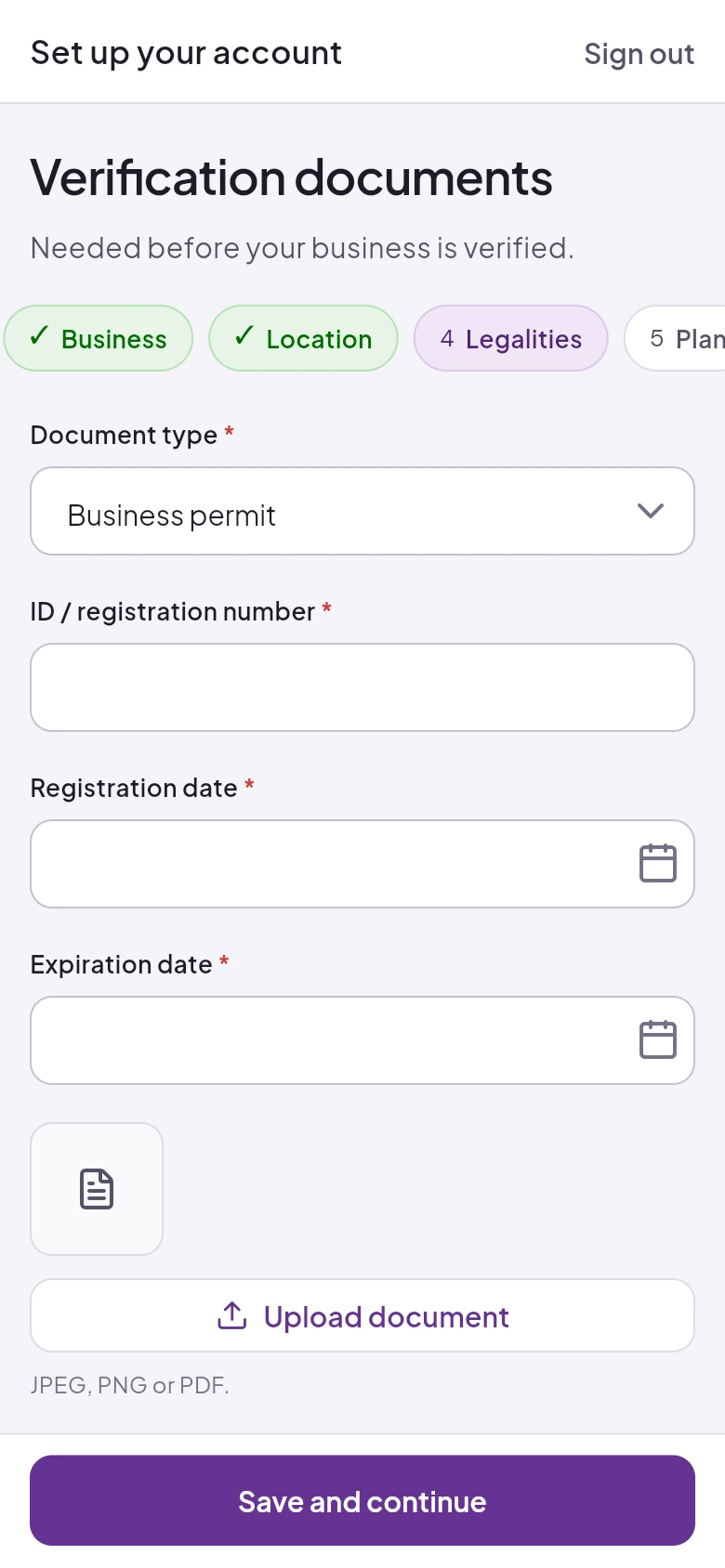
Then fill in the ID or registration number, the registration date and the expiration date. All three are required. You also upload the document itself.
Steps
- In the Legalities step, choose the “Document type”.
- Type the “ID / registration number”.
- Pick the “Registration date” and the “Expiration date”.
- Tap “Upload document” and choose a file. The file must be “JPEG, PNG or PDF.”
- Tap “Save and continue”.
What each review state means
The step shows a “Review status”.
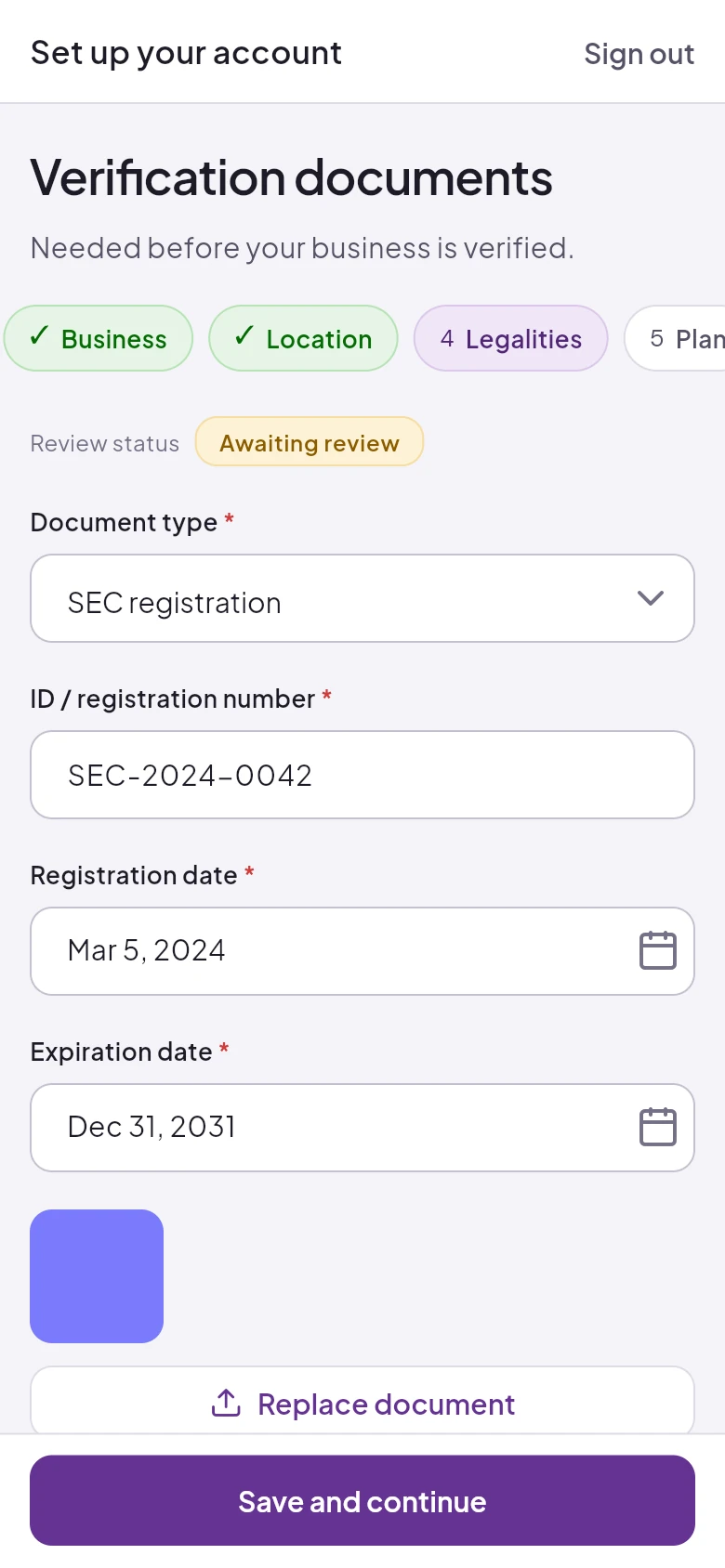
- “Awaiting review”. You uploaded a document. BOOKniNAM has not decided yet. Each time you upload a new document, the status goes back to this.
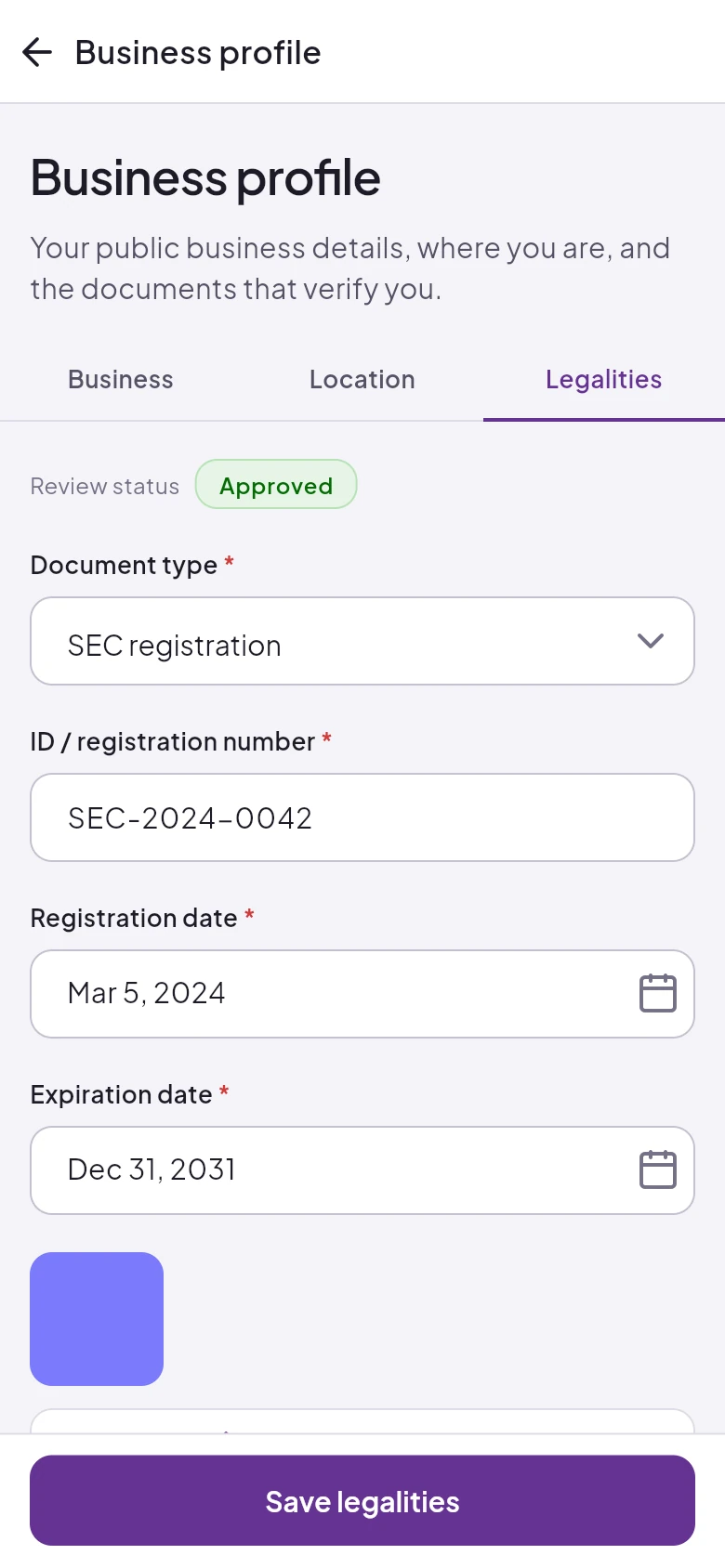
- “Approved”. BOOKniNAM accepted your documents. Your business is marked as verified.
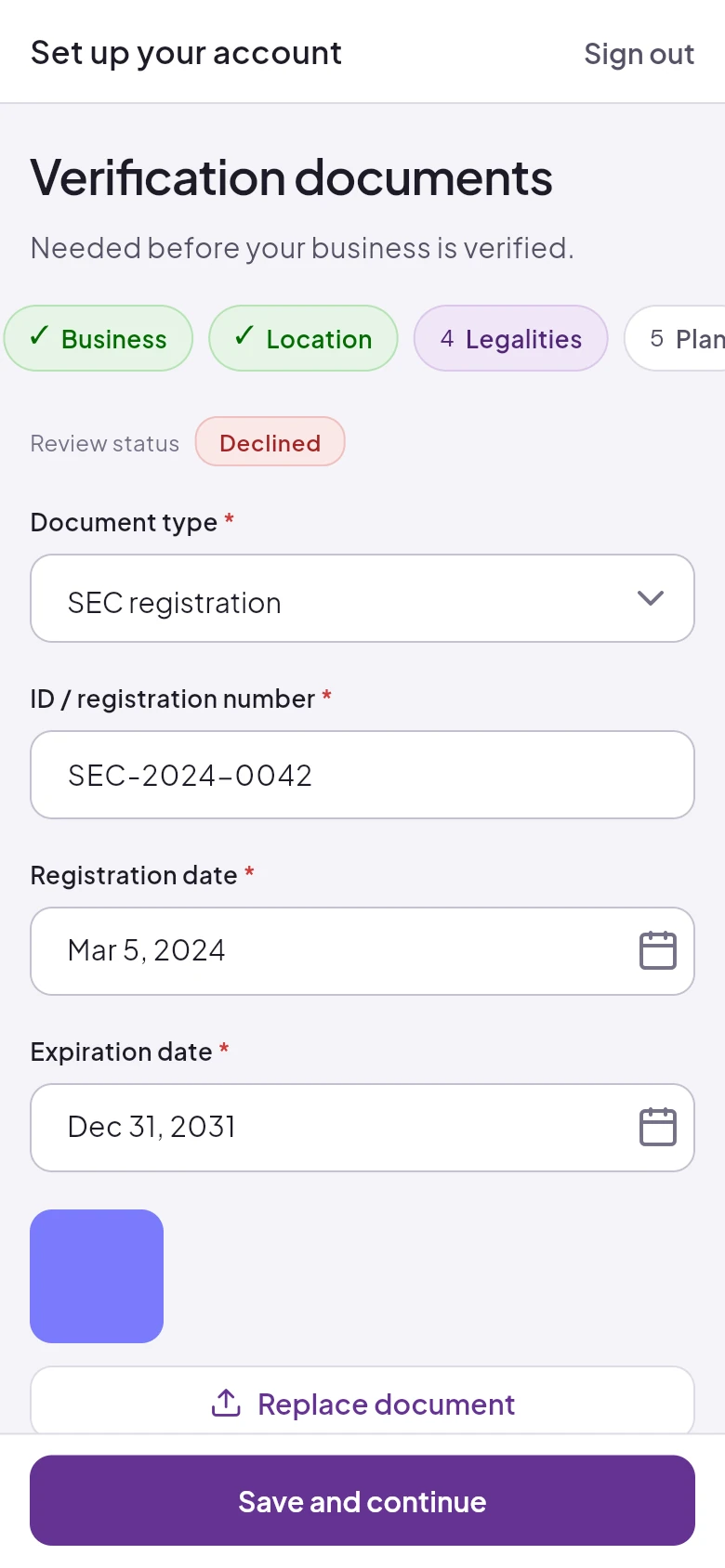
- “Declined”. BOOKniNAM did not accept them. The app shows the word Declined. It does not show a reason.
If your documents are declined
- Check the type, the number and the dates. Make sure the file is clear and is a JPEG, PNG or PDF.
- Tap “Replace document” and choose a better file.
- Save. The status goes back to Awaiting review.
- If you do not understand why, contact us.
You can also open the same form later: in the business profile, the Legalities tab has “Save legalities”.