This article is about the business app.
Add and edit a service
Create the services customers can book, with a price, a time and a photo.
Checked against the app on 2026-11-12.
Services are what customers can book. Set a price, a duration and a photo. Then publish availability for each service. This page is for the owner only.
Add a service
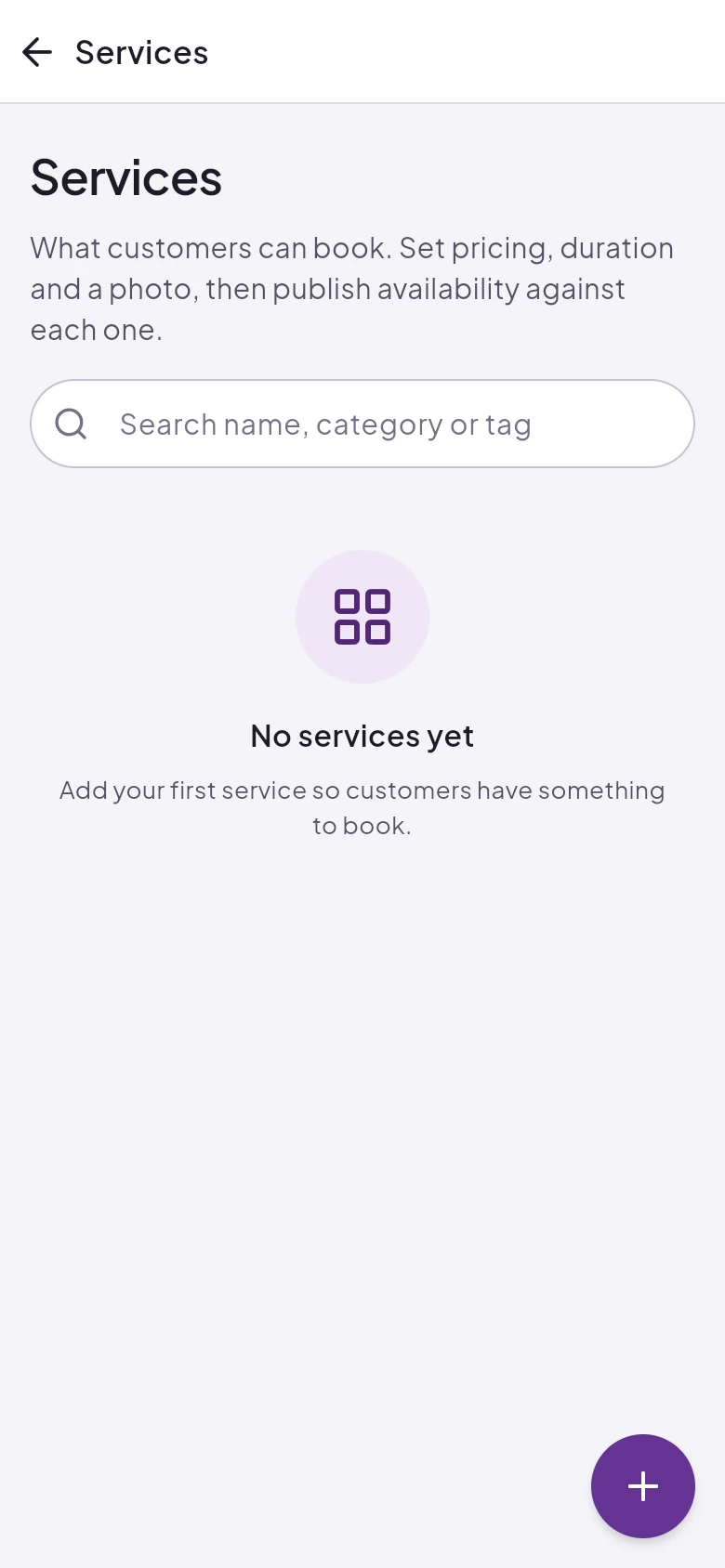
- Open Services from the More menu. If you have none, the app says “No services yet”.
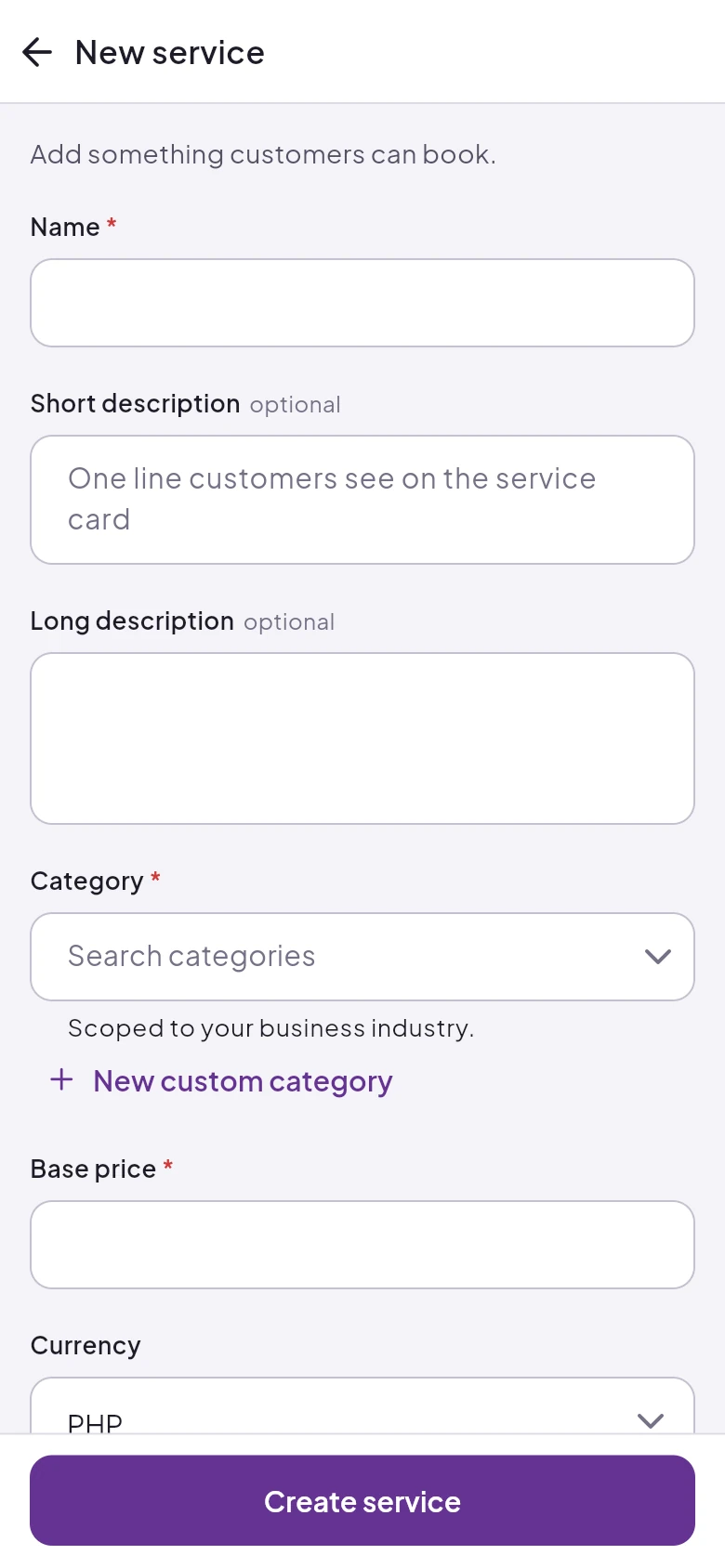
- Tap “New service”.
- Type the “Name”. It needs 1 to 100 characters.
- Add a “Short description” (up to 160 characters) and a “Long description” (up to 500 characters). Both are optional.
- Pick a category. The list is scoped to your business industry. If yours is missing, tap “New custom category”.
- Type the “Base price”, a number from 0 to 1,000,000. The currency shows PHP.
- Pick the “Price type”: Fixed, Per hour, Per service or Per person.
- Set “Duration (minutes)”. It is optional.
- For a group service, set “Max capacity”, from 1 to 10 clients per slot. It is optional.
- Add a cover photo and gallery photos if you want. Tap “Create service”.
Edit or delete
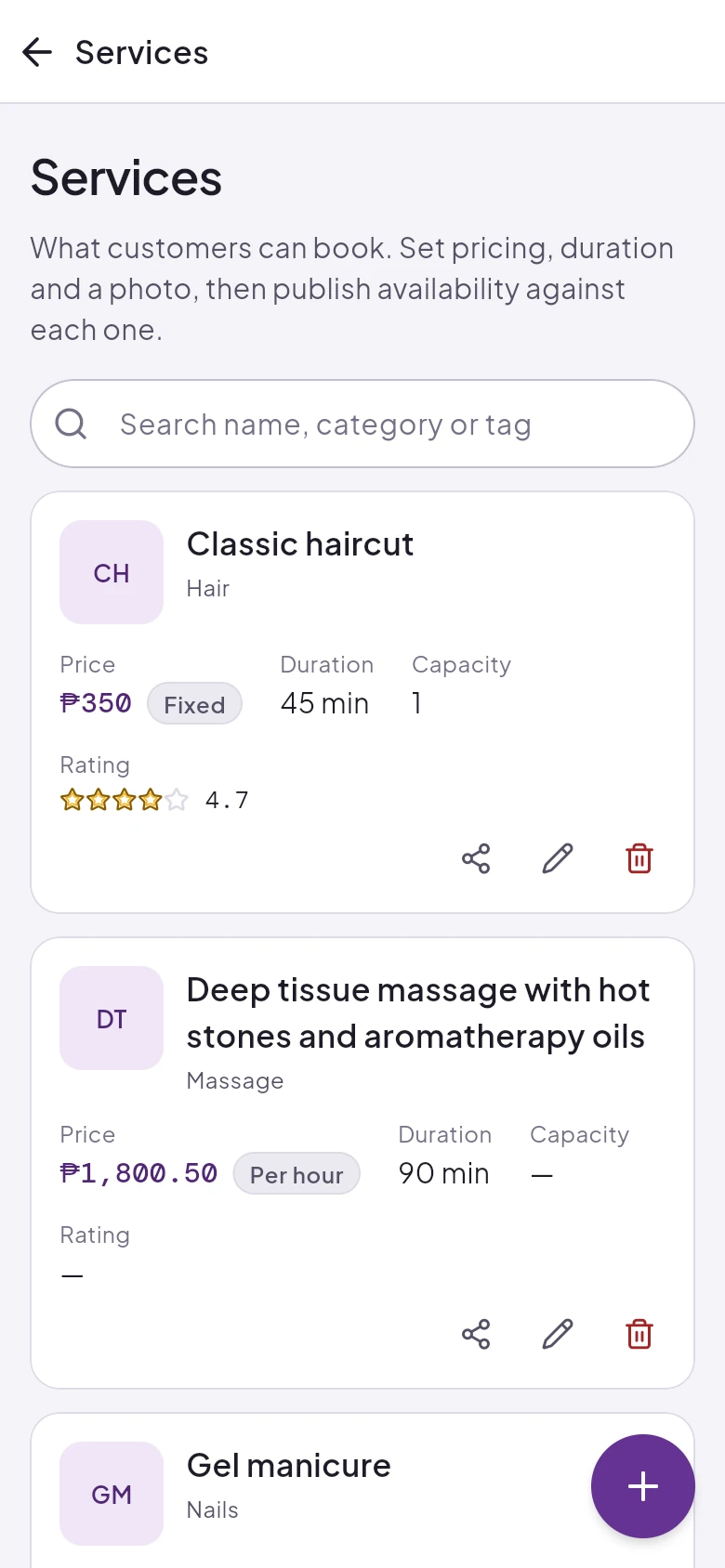
Each service in the list has Edit, Delete and Share buttons. Delete asks you to confirm “Delete service”.
Good to know
- A new service cannot be booked until you add availability. See Add availability.
- Your plan can limit how many services you can create. See Your subscription and limits.